
Introduction
This guide is for users who have already installed OpenClaw — or are planning a deployment beyond a basic laptop setup — and need authoritative answers to three specific technical questions: where to run it, where to host it reliably, and where to find and edit the configuration files that control everything it does.
Those three questions are more tightly connected than they appear. The right hosting environment determines how you access your config files. The config file location changes between operating systems and container environments. And the config architecture itself — JSON5 format, strict schema validation, hot-reload behaviour — has specific implications for how you manage it safely.
This guide covers all of it, drawn from the official OpenClaw documentation, the community config reference skill, and live hosting comparisons compiled from six VPS providers.
Starting from scratch? You need our installation guide first. → [How to Install, Use & Run OpenClaw — Complete Setup Guide]
Evaluating whether OpenClaw is right for you? → [Is OpenClaw Safe, Free & Legit? Honest Review]
Where to Install OpenClaw — Choosing the Right Environment
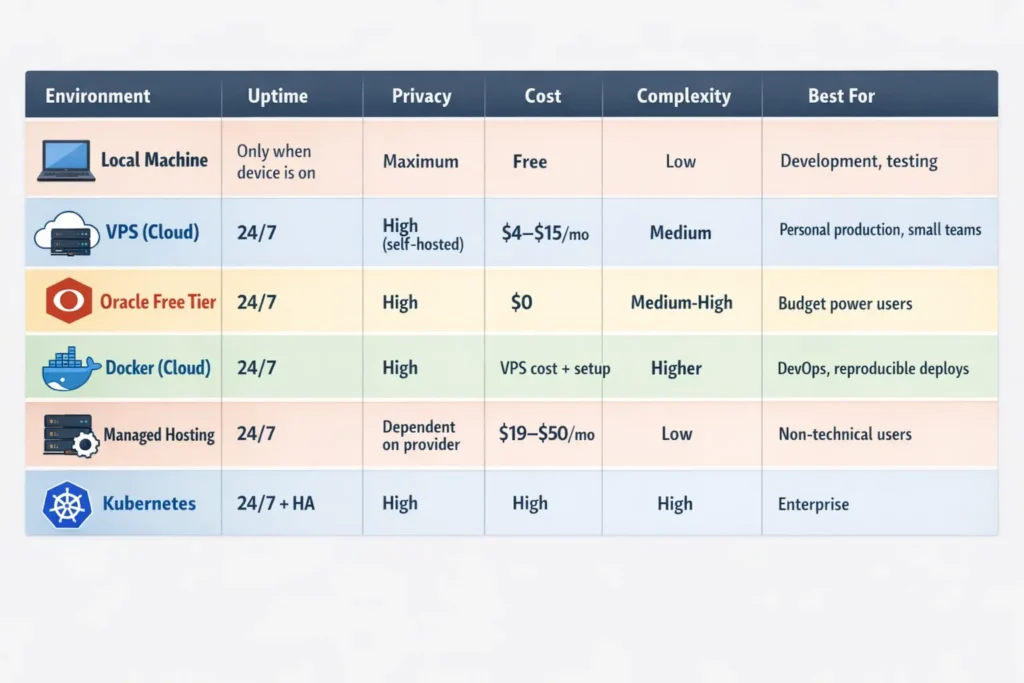
The official OpenClaw documentation lists dedicated deployment guides for DigitalOcean, Docker VM Runtime, exe.dev, Fly.io, GCP, Hetzner, Kubernetes, Linux Server, macOS VMs, Northflank, Oracle Cloud, Railway, Raspberry Pi, Render, and Windows. Each represents a valid deployment environment. Your choice comes down to four factors: how available the agent needs to be, how much you want to spend, how sensitive your data is, and how much infrastructure you are willing to manage.
Local Machine (Developer Workstations)
A local installation means OpenClaw runs on your laptop or desktop — only when that machine is on and connected. It is the fastest way to get started and the only option with zero ongoing infrastructure cost. Every file, every conversation, every API key stays exclusively on your device, making it the highest-privacy configuration available.
The hard limitation is availability: local deployments go offline when your machine sleeps, is closed, or loses network access. For heartbeat tasks, cron automation, and any workflow that needs to execute while you are away from your desk, a local installation is structurally insufficient.
Best for: Development, experimentation, personal use where you are the only user and do not need 24/7 uptime.
Cloud VPS (Dedicated Always-On Server)
A Virtual Private Server is the most common production deployment for OpenClaw. You rent a Linux server from a hosting provider, install OpenClaw, and the Gateway runs continuously — available from any device, at any hour, whether or not your personal computer is on.
The official docs describe the recommended pattern: “The Gateway runs on the VPS and owns state + workspace. You connect from your laptop or phone via the Control UI or Tailscale/SSH. Treat the VPS as the source of truth and back up the state + workspace regularly.“
This is the architecture that makes OpenClaw genuinely powerful for automation: Heartbeats fire on schedule, cron jobs run overnight, and webhook triggers respond instantly — independent of your personal hardware.
Best for: Personal power users, small teams, and anyone building automations that need to run 24/7.
Container Environment (Docker / Kubernetes)
Docker deployment is the standard approach for DevOps teams and anyone who wants isolated, reproducible environments. In a Docker setup, the config file mounts as a volume from the host filesystem into the container. Config changes on the host are reflected inside the container without rebuilding the image. Kubernetes extends this for multi-instance, high-availability deployments — relevant for enterprise use or teams running multiple OpenClaw instances.
Best for: Engineering teams, DevOps pipelines, and anyone who needs infrastructure-as-code deployment patterns.
Where to Run OpenClaw — Local vs. Cloud vs. Hybrid
The Hybrid Approach: Cloud Gateway, Local Nodes
OpenClaw’s official documentation describes a hybrid architecture: “You can keep the Gateway in the cloud and pair nodes on your local devices (Mac/iOS/Android/headless). Nodes provide local screen/camera/canvas and system.run capabilities while the Gateway stays in the cloud.“
This is the most powerful configuration for users who need both always-on availability and access to local system resources. The Gateway (and all state, memory, and channel connections) lives on a VPS. Local “Node” clients on your Mac, iPhone, or Android connect to it, providing access to your local camera, screen capture, and shell — while keeping the Gateway permanently online.
Resource Requirements Per Environment
Per the OpenClaw server requirements documentation (updated February 2026): a text-only agent with no browser automation requires 2 vCPU and 4 GB RAM with 40 GB disk — workable but tight. Standard use with browser skills requires 4 vCPU, 8 GB RAM, and 80 GB disk. Heavy automation with multiple channels requires 4+ vCPU and 16 GB RAM.
The minimum 4 GB RAM threshold is a real constraint: below 4 GB, Docker becomes unstable during skill loading. If you enable Playwright-based browser skills, budget for 8 GB RAM — the minimum will get sluggish under load.
Where to Host OpenClaw — Hosting Options Compared
The OpenClaw hosting ecosystem has matured rapidly since the project launched. Six provider categories now serve different user profiles.
Hetzner — Best Value for European Users
Hetzner’s cheapest plan costs €3.79/month and includes 2 vCPU cores, 4 GB of RAM, and 40 GB of NVMe storage. Every plan includes 20 TB of traffic in the EU. Hetzner offers hourly billing, so you pay only for resources you use, even if you delete your instances before the end of the month.
Hetzner is the OpenClaw community’s number one VPS recommendation. It is the cheapest mainstream VPS provider, runs on EU infrastructure for GDPR compliance, and offers excellent performance. The trade-off is that Hetzner assumes Linux proficiency — you will configure everything from scratch.
Verdict: Best value for technically capable users in the EU or with GDPR requirements.
DigitalOcean — Best for Documentation and Support
DigitalOcean is most popular among professional developers due to its reliability. The cheapest Droplet starts at $4.00/month, but only has 512 MB of RAM — below OpenClaw’s minimum. The recommended starting plan is $12.00/month: 2 GB RAM, 1 vCPU, 50 GB SSD. DigitalOcean’s interface is very intuitive and makes snapshots easy, so if an OpenClaw update breaks the agent, you can restore the entire server state in minutes.
DigitalOcean’s documentation is outstanding, its community is massive, and finding OpenClaw-specific guides and troubleshooting threads is easier than with any other provider.
Verdict: Best for users who want strong ecosystem support and are willing to pay a modest premium.
Oracle Cloud Always Free — Best for Zero Budget
Oracle Cloud’s Always Free tier offers 4 ARM-based CPUs and 24 GB of RAM at zero cost — more than enough to run OpenClaw with room to spare, and more powerful than the free tiers of any other major cloud provider.
Oracle Cloud signup has a high failure rate due to capacity limits. Many users report needing to try multiple times or use different regions. It is free but not guaranteed.
Verdict: Unbeatable for zero-cost production hosting — if you can successfully provision an account.
Managed OpenClaw Hosting — Best for Non-Technical Users
Several managed hosting services have emerged specifically for OpenClaw — including ClawHosters (clawhostingle.com), DockClaw, ClawHost, and Hostinger’s one-click Docker template. Managed services handle the full stack: OS, Docker, Nginx, SSL, and OpenClaw configuration. Pricing runs from $19.99 to $49.99 per month.
Verdict: Worth the premium if your time is worth more than $20/month and you have no interest in managing Linux servers.
Where Is the OpenClaw Config File?
This is the most-searched technical question about OpenClaw. The definitive answer: the config file is at ~/.openclaw/openclaw.json on all Unix-based systems (macOS and Linux). The ~ resolves to your home directory — typically /home/yourusername/ on Linux and /Users/yourusername/ on macOS.
The config file basics are: Path: ~/.openclaw/openclaw.json. Format: JSON5 (comments, trailing commas, and unquoted keys are all allowed). Validation: Strict — unknown keys cause the Gateway to refuse to start. Watching: the Gateway watches the file for changes and hot-reloads automatically.
Config File Location By Platform
macOS and Linux (standard install):
~/.openclaw/openclaw.json
This resolves to:
- macOS:
/Users/yourusername/.openclaw/openclaw.json - Linux:
/home/yourusername/.openclaw/openclaw.json
Windows (via WSL2): OpenClaw on Windows runs inside the WSL2 Ubuntu subsystem. The config file lives in the WSL2 filesystem, not the Windows filesystem:
# Inside WSL2 terminal
~/.openclaw/openclaw.json

# Accessible from Windows Explorer at:
\\wsl.localhost\Ubuntu\home\yourusername\.openclaw\openclaw.json
Docker containers: In Docker containers, the config path is /app/data/openclaw.json. In practice, this is mounted from a host directory — the Docker run command maps ~/.openclaw on the host to the container’s expected path, so edits on the host are reflected immediately.
Custom / non-default location: Set the OPENCLAW_CONFIG_PATH environment variable to override the config file location: OPENCLAW_CONFIG_PATH=/path/to/openclaw.json.
The Full ~/.openclaw/ Directory Structure
The complete .openclaw directory layout is:
~/.openclaw/
├── openclaw.json       # Main config
├── credentials/        # API keys (chmod 600)
│   ├── openrouter
│   ├── anthropic
│   └── synthetic
└── workspace/          # Your working directory
    ├── AGENTS.md
    ├── SOUL.md
    ├── USER.md
    ├── TOOLS.md
    ├── HEARTBEAT.md
    ├── memory/
    │   └── YYYY-MM-DD.md
    └── skills/
        └── your-skills/
How to Find the Config File If It Is Missing
If openclaw.json does not exist, OpenClaw uses safe defaults. If you are unsure where the file is:
# Show the exact config file path in use
openclaw config path

# Show all current config values (uses defaults if file missing)
openclaw config get

# Initialise the file with defaults
openclaw setup
Where Is the OpenClaw Config — Default vs. Custom Paths
OpenClaw uses a defined priority order for resolving configuration. Understanding this order is critical for multi-environment setups, CI/CD pipelines, and Docker deployments.
Configuration Priority Order
OpenClaw resolves environment variables in this order, with earlier sources winning: (1) process environment — variables already in the shell when you start the Gateway; (2) .env file in the current working directory; (3) the env.vars block in the config file. The env.vars block is for setting defaults that do not override what is already in the environment. Use ~/.openclaw/.env or the process environment for credentials.
In plain terms: environment variables always win over config file values. This means you can deploy a single openclaw.json to multiple environments and override sensitive or environment-specific values (API keys, gateway ports, model selections) through environment variables without touching the config file.
CLI Config Commands Reference
The CLI config commands are: openclaw config get to show full config; openclaw config get gateway.port to get a specific value; openclaw config set gateway.port 19000 to set a value; and openclaw config unset gateway.auth.token to remove a value.
The CLI validates before writing, making it the safest way to change config. Unlike direct file edits, openclaw config set runs the value through the JSON5 parser and schema validator before committing the change — preventing the most common cause of Gateway startup failure.
Modular Config with $include
For complex deployments with environment-specific settings, split your config into multiple files:
{
  "$include": "./channels-config.json",
  gateway: {
    port: 18789
  }
}
The included file is merged into the main config. This is particularly useful for separating channel tokens (which may change per deployment) from core agent configuration (which stays consistent).
Where Is the OpenClaw JSON File?
OpenClaw uses JSON5 format — not strict JSON. JSON5 is a superset of JSON that allows comments (// like this), trailing commas, and unquoted object keys. Any valid JSON is valid JSON5, so existing JSON configs import cleanly. The file extension remains .json, not .json5.
A minimal valid openclaw.json looks like this:
// ~/.openclaw/openclaw.json
{
  agents: {
    defaults: {
      workspace: "~/.openclaw/workspace"
    }
  },
  channels: {
    whatsapp: {
      allowFrom: ["+15555550123"]
    }
  }
}
The Most Important Config Sections
The agents section controls the agent identity and model routing. The channels section connects messaging platforms. The auth section manages API credential profiles. The identity section sets the agent’s display name, personality theme, emoji, and avatar.
A model routing configuration with fallbacks looks like this:
{
  agents: {
    defaults: {
      model: {
        primary: "anthropic/claude-sonnet-4-6",
        fallbacks: ["openai/gpt-5.2"],
      },
    },
  },
}
The coordinator vs. worker pattern is a key cost management principle: keep expensive models (Opus, Sonnet) out of the primary slot. Use capable but cheap models as your default. Strong models go in fallbacks or pinned to specific agents. Expensive defaults burn quotas on routine work; cheap defaults with scoped fallbacks produce predictable costs.
Validate Your JSON Config
Always validate after manual edits:
# Python validator (available everywhere)
cat ~/.openclaw/openclaw.json | python3 -m json.tool

# OpenClaw's own doctor
openclaw doctor

# Auto-fix detectable issues
openclaw doctor --fix
Securing Your OpenClaw Config File
The openclaw.json file and ~/.openclaw/ directory contain API keys, channel tokens, and sensitive agent configuration. Mishandling them is the single most common cause of credential exposure in OpenClaw deployments.
File Permission Best Practices
Lock down permissions before running OpenClaw in production:
chmod 700 ~/.openclaw
chmod 600 ~/.openclaw/openclaw.json
chmod 700 ~/.openclaw/credentials
chmod 600 means only the file owner can read or write the config. No other user on the system can access it. chmod 700 on the directory prevents other users from listing its contents.
Never Commit Config Files to Public Repositories
The ~/.openclaw/ directory should never appear in a Git repository. Add it to your .gitignore globally:
echo "~/.openclaw/" >> ~/.gitignore_global
git config --global core.excludesfile ~/.gitignore_global
If you want to version-control your config for reproducibility, create a sanitised template with placeholders instead of real credentials:
{
  channels: {
    telegram: {
      botToken: "${TELEGRAM_BOT_TOKEN}",  // set via env var
    }
  }
}
Using .env for Secrets
Store all API keys and tokens in ~/.openclaw/.env, not hardcoded in openclaw.json. You can also use environment variables in ~/.openclaw/.env for sensitive data like API keys. For project-specific settings, create openclaw.config.json in your project directory.
A clean .env file:
ANTHROPIC_API_KEY=sk-ant-your-key-here
TELEGRAM_BOT_TOKEN=your-bot-token
OPENAI_API_KEY=sk-your-openai-key
Bind the Gateway to Localhost
OpenClaw’s Canvas Host component defaults to binding to 0.0.0.0 — meaning any device on your local network can reach your OpenClaw interface. Fix this in your openclaw.json:
{
  gateway: {
    bind: "loopback",
    port: 18789
  }
}
This single configuration change closes the most prevalent publicly documented security misconfiguration in OpenClaw deployments. For VPS deployments, access the dashboard exclusively via SSH tunnel (ssh -L 18789:localhost:18789 user@your-vps), not over the public internet.
Verify No Secrets Are Leaking to Logs
After configuring permissions, run this check:
grep -r "sk-" ~/.openclaw/ # Should find nothing in logs
If any API key patterns appear in log files, rotate those keys immediately through the relevant provider’s dashboard.
Deploying OpenClaw with Docker — Step-by-Step
Docker is the recommended deployment method for VPS hosting because it provides process isolation, consistent environments, and straightforward version management.
Docker Run (Single Container)
docker pull openclaw/openclaw:latest
docker run -d \
  --name openclaw \
  --restart unless-stopped \
  -p 127.0.0.1:18789:18789 \
  -v ~/.openclaw:/root/.openclaw \
  -v ~/openclaw-workspace:/root/openclaw-workspace \
  --env-file ~/.openclaw/.env \
  openclaw/openclaw:latest
The -p 127.0.0.1:18789:18789 flag binds the port to localhost only — not to 0.0.0.0. This is the security-correct default; access the dashboard via SSH tunnel from your local machine.
Docker Compose (Recommended for VPS)
version: "3.8"
services:
  openclaw:
    image: openclaw/openclaw:latest
    restart: unless-stopped
    ports:
      - "127.0.0.1:18789:18789"
    volumes:
      - ~/.openclaw:/root/.openclaw
      - ~/openclaw-workspace:/root/openclaw-workspace
    env_file:
      - ~/.openclaw/.env
Save as docker-compose.yml, then:
docker compose up -d         # Start
docker compose logs -f       # Follow logs
docker compose pull && docker compose up -d   # Update
Mounting the Config as a Volume
The -v ~/.openclaw:/root/.openclaw volume mount means your host’s config directory maps directly into the container. Edit ~/.openclaw/openclaw.json on the host and the Gateway picks up the changes via hot-reload — no container restart required.
Nginx Reverse Proxy with TLS (Production VPS)
For VPS deployments, the Nginx configuration requires WebSocket support for OpenClaw to function correctly:
location / {
  proxy_pass http://127.0.0.1:3000;
  proxy_http_version 1.1;
  proxy_set_header Upgrade $http_upgrade;
  proxy_set_header Connection "upgrade";
  proxy_set_header Host $host;
  proxy_set_header X-Real-IP $remote_addr;
}
The Upgrade and Connection "upgrade" headers are not optional — omitting them causes a dashboard that loads but fails to receive real-time updates. This is the most common cause of a dashboard that loads but feels broken.
Frequently Asked Questions
Where is the OpenClaw config file on Windows 11?
On Windows 11 with WSL2 (the only supported Windows installation method), the config file lives inside the WSL2 Ubuntu filesystem at ~/.openclaw/openclaw.json. From Windows File Explorer, navigate to \\wsl.localhost\Ubuntu\home\yourusername\.openclaw\openclaw.json. Do not edit files in the WSL2 filesystem using Windows text editors — use a WSL2 terminal session to make changes and avoid line ending corruption.
Can I have multiple config files for different environments?
Yes. Use the OPENCLAW_CONFIG_PATH environment variable to point to different config files, or use --profile <name> CLI flag to select a named profile, which uses a separate state directory. The --dev flag uses a dev environment with a separate state directory from production. For Docker deployments, mount different config files per container.
Where should I host OpenClaw for production use?
For most individual users and small teams, a Hetzner VPS (from €3.79/month) or DigitalOcean Droplet (from $12/month with adequate RAM) is the recommended production environment. The security best practice is to keep the Gateway on loopback and access it via SSH tunnel or Tailscale Serve. If you bind to lan or tailnet, require gateway.auth.token or gateway.auth.password. For zero-budget hosting, Oracle Cloud’s Always Free tier (4 ARM CPUs, 24 GB RAM) is the only viable option.
How do I change the default config file location?
Set the environment variable before starting the Gateway:export OPENCLAW_CONFIG_PATH=/custom/path/openclaw.json openclaw gateway start
To make this permanent, add the export line to ~/.bashrc (Linux) or ~/.zshrc (macOS).
Conclusion
The where-questions in OpenClaw have clear, specific answers once you know where to look. The config file lives at ~/.openclaw/openclaw.json on every Unix-based system — whether on macOS, a Linux VPS, or inside a WSL2 session on Windows. In Docker, it mounts from the host at /app/data/openclaw.json. The Gateway watches it and hot-reloads on every save.
The hosting decision is more nuanced — but the framework is simple: local for development, Hetzner or DigitalOcean VPS for production, Oracle Cloud for zero-budget production, and managed hosting if infrastructure management is not your interest. Secure every deployment by binding the Gateway to loopback, setting strict file permissions on ~/.openclaw/, and keeping all secrets in environment variables rather than hardcoded in the config.
One configuration decision that pays compound dividends: the coordinator/worker pattern for model routing. Set a cheap model as your default and route expensive models to specific agents. It is the difference between predictable $10 monthly API bills and an unexpected $150 charge at the end of the month.
Need help with the initial setup before reaching the configuration stage? Read our complete installation guide → [How to Install, Use & Run OpenClaw — Complete Setup Guide]
Source:
- Official Docs — Configuration: https://docs.openclaw.ai/gateway/configuration
- Official Docs — Linux/VPS Hosting: https://docs.openclaw.ai/vps
- Official Docs — Docker: https://docs.openclaw.ai/docker
- Config Reference Skill (ClawHub/Playbooks): https://playbooks.com/skills/openclaw/skills/openclaw-config-reference
- GitHub Config Example (Sanitised Gist): https://gist.github.com/digitalknk/4169b59d01658e20002a093d544eb391
- LumaDock — CLI & Config Reference: https://lumadock.com/tutorials/openclaw-cli-config-reference
- Hetzner VPS: https://www.hetzner.com/cloud
- DigitalOcean Droplets: https://www.digitalocean.com/products/droplets
- Oracle Cloud Always Free: https://www.oracle.com/cloud/free/
- Docker Hub — openclaw/openclaw: https://hub.docker.com/r/openclaw/openclaw
- VPS Comparison (CyberNews): https://cybernews.com/best-web-hosting/best-openclaw-hosting/
- Macaron VPS Deployment Guide: https://macaron.im/blog/openclaw-vps-deployment
- Cognio Labs — Oracle Cloud Free Setup: https://cognio.so/clawdbot/self-hosting