
Introduction
Most OpenClaw installation guides skip the hard part. They show you one command, declare victory, and leave you staring at a broken terminal with no idea why your gateway won’t start.
This guide does not do that. It covers every installation method — from the one-liner script to a Docker deployment to a Windows WSL2 setup — with exact commands, exact error fixes, and the precise sequence that gets you from zero to a running, responding AI agent. Whether you are a first-time user on a MacBook or a developer deploying to a Linux VPS, this guide covers your path.
By the end, you will have OpenClaw installed, configured, connected to an AI model and a messaging app, and running as a persistent background service that survives reboots.
New to OpenClaw? Before following this guide, read our foundational overview of what OpenClaw is and what it can do. → [What Is OpenClaw AI? Everything You Need to Know]
Security-conscious? Read our full safety and trust analysis before installation. → [Is OpenClaw Safe, Free & Legit? Honest Review]
How OpenClaw Works — A Quick Technical Overview
Understanding the architecture before you install saves hours of troubleshooting. OpenClaw has two layers, which PromptLayer’s engineering team describes as the “Brain” and the “Hands.”
The Brain is the reasoning engine — the configured AI model (Claude, GPT-4, Gemini, or a local model). Every message you send, every task the agent performs, goes through the brain for planning and decision-making.
The Hands is the execution environment — the Gateway process running on your machine. The Gateway runs at ws://127.0.0.1:18789 and serves as the control plane for all clients, tools, and events. It manages channel connections (WhatsApp, Telegram, Discord, and 20+ others), the CLI, the WebChat UI, and platform-specific companion apps on macOS, iOS, and Android.
The request flow works like this: You send a message from WhatsApp → the message arrives at the Gateway → the Gateway routes it to your configured AI model → the model plans the required action → the Gateway executes that action (shell command, file operation, API call, browser step) → the result is returned to you in WhatsApp.
Workspace files — AGENTS.md, SOUL.md, and TOOLS.md — are injected into every model prompt, giving the agent its persistent identity, memory, and tool context. Skills are stored as SKILL.md files inside ~/.openclaw/workspace/skills/<skill>/.
💡 Tip: Understanding how OpenClaw works before installation saves hours of troubleshooting. When something goes wrong, you will know immediately whether the problem is in the model layer (wrong API key), the Gateway (port conflict), or a channel (misconfigured bot token).
System Requirements Before You Install OpenClaw
Verify every item in this section before running a single installation command.
Operating System
Specifically:
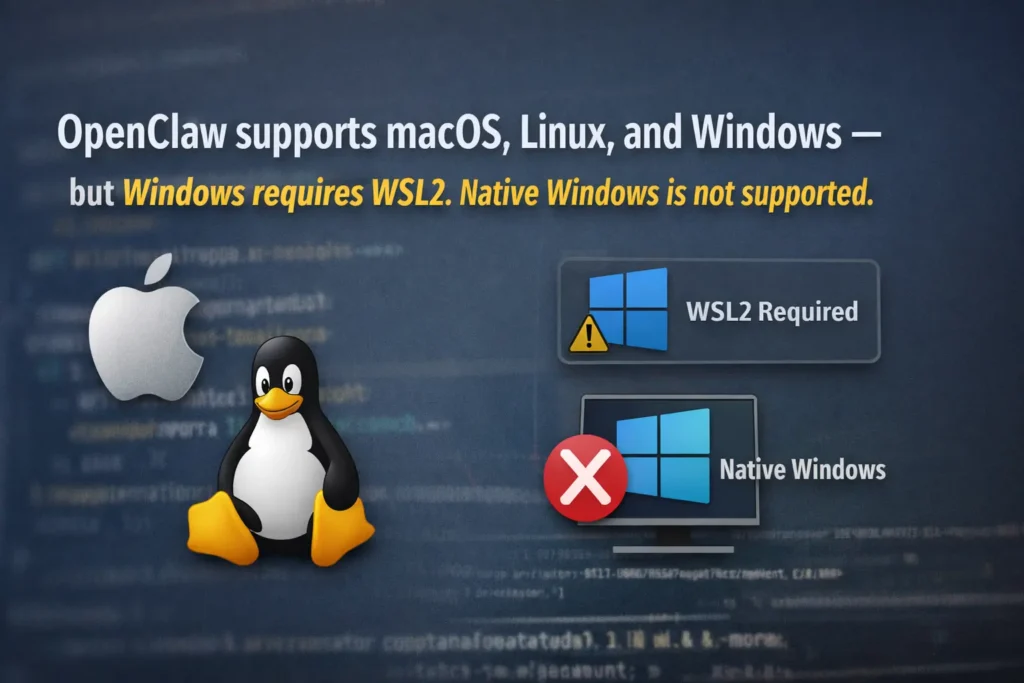
- macOS: macOS 13 (Ventura) or later. Both Intel and Apple Silicon (M1/M2/M3/M4) are supported natively.
- Linux: Any modern distribution with glibc 2.31+. Ubuntu 22.04 or 24.04 LTS is the recommended and most tested configuration.
- Windows: WSL2 with Ubuntu 22.04 is required. All commands run inside the WSL terminal — not PowerShell or Command Prompt.
Node.js Version
Node.js version 22 or higher is required. Node.js 24+ is strongly recommended. Using Node 20 causes dependency errors; using Node 18 or earlier will fail entirely.
Check your version with:
node --version
If the output shows below v22.0.0, install the latest LTS using nvm:
nvm install --lts && nvm use --lts
Hardware Minimums
OpenClaw itself uses approximately 200–400 MB of RAM at idle. A minimum of 2 GB of RAM is required for basic use; 4 GB is strongly recommended for a comfortable experience. A fresh installation requires roughly 500 MB of disk space. At least 5 GB of free disk space is recommended to allow room for logs, conversation history, and skills.
For cloud-model-only use (Claude, GPT-4), a modern laptop with 8 GB of RAM handles all standard workloads comfortably.
Network Requirements
Channel adapters (Slack, Telegram, Discord) require OpenClaw to receive incoming webhook requests, meaning the server must be reachable from the internet on the configured port. Options include a public-facing server with a static IP, a reverse proxy (Nginx, Caddy) with TLS, or a tunnel service like ngrok or Cloudflare Tunnels for development use.
Make sure outbound HTTPS access is allowed and stable. If your network is locked down, plan for proxy settings and confirm that gateway ports are not exposed publicly.
Run a Pre-Flight Check
uname -a          # Operating system
node --version    # Must be v22+
npm --version     # Must be 9+
git --version     # Needed for manual installation
How to Install OpenClaw (Universal Steps)
OpenClaw supports three main installation paths. Choose based on your comfort level and use case.
Method 1: One-Line Installer Script (Recommended for Most Users)
This is the fastest method. The script detects your OS, checks your Node.js version, and launches the onboarding wizard automatically.
Step 1. Run the installer in your terminal:
curl -fsSL https://openclaw.ai/install.sh | bash
Step 2. The installer will detect your system, install any missing dependencies (including Homebrew on macOS if needed), and install the global openclaw CLI.
Step 3. Launch the onboarding wizard:
openclaw onboard
Step 4. Confirm the installation succeeded:
openclaw --version
openclaw doctor
Security note: If you prefer to inspect scripts before execution, download and review first:
curl -O https://openclaw.ai/install.sh, read the file, then runbash install.sh.
Method 2: npm / pnpm Global Install
Install the global CLI package with npm or pnpm, then run the onboarding wizard:
# npm
npm install -g openclaw@latest
openclaw onboard --install-daemon

# pnpm (alternative)
pnpm add -g openclaw@latest
openclaw onboard --install-daemon
The --install-daemon flag registers OpenClaw as a background service — systemd on Linux, launchd on macOS — ensuring the agent survives reboots and stays always-on.
Method 3: Docker (Servers and Isolated Environments)
docker pull openclaw/openclaw:latest
docker run -d \
  --name openclaw \
  -p 3000:3000 \
  -v ~/.openclaw:/root/.openclaw \
  --env-file ~/.openclaw/.env \
  openclaw/openclaw:latest
Docker mounts two volumes: ~/.openclaw for configuration and credentials, and ~/openclaw/workspace as the agent’s sandbox. If you hit EACCES permission errors, fix ownership with chown on the host.
Method 4: Build from Source (Developers and Contributors)
git clone https://github.com/openclaw/openclaw.git
cd openclaw && pnpm install && pnpm run build
pnpm run openclaw onboard
How to Install OpenClaw on Windows — Detailed Walkthrough
Native Windows is not supported. Install WSL2 with Ubuntu and follow all Linux instructions inside the WSL terminal.
Step 1: Install WSL2
Open PowerShell as Administrator and run:
wsl --install -d Ubuntu-22.04
Restart your computer when prompted. After restart, Ubuntu will complete its setup. Set a Linux username and password when asked.
Step 2: Open the WSL2 Terminal
All remaining steps happen inside the WSL terminal (Ubuntu), not PowerShell or Command Prompt. Open Windows Terminal, click the dropdown, and select Ubuntu.
Step 3: Install Node.js via nvm
curl -o- https://raw.githubusercontent.com/nvm-sh/nvm/v0.39.7/install.sh | bash
source ~/.bashrc
nvm install --lts && nvm use --lts
node --version   # Confirm v22+
Step 4: Install OpenClaw
curl -fsSL https://openclaw.ai/install.sh | bash
openclaw onboard
Step 5: Access from Windows Browser
If you want to access the OpenClaw web interface running in WSL2 from your Windows browser, you may need to allow the corresponding port through Windows Firewall. The Gateway dashboard is accessible at http://localhost:18789 from your Windows browser once the Gateway is running.
Common Windows Errors
“command not found: openclaw” — Your npm global bin directory is not in your PATH. Run:
echo 'export PATH="$(npm prefix -g)/bin:$PATH"' >> ~/.bashrc && source ~/.bashrc
“EACCES permission denied” — Switch npm’s global prefix to a user-writable directory:
mkdir ~/.npm-global
npm config set prefix '~/.npm-global'
echo 'export PATH=~/.npm-global/bin:$PATH' >> ~/.bashrc
source ~/.bashrc
npm install -g openclaw@latest
How to Setup OpenClaw — Initial Configuration
After installation, openclaw onboard guides you through a setup wizard. Here is what each step does and what you need to have ready.
Step 1: Select Your AI Model Provider
Select Anthropic (Claude), OpenAI (GPT), Google (Gemini), or a local model via Ollama. You can switch providers anytime in your config.
Step 2: Enter Your API Key
Paste your API key from the provider’s dashboard. Keys are stored locally in your .env file at ~/.openclaw/.env — never sent anywhere except the AI provider.
Step 3: Connect a Messaging Channel
Link WhatsApp (scan QR code), Telegram (paste bot token from @BotFather), Discord (paste bot token), or any other supported platform.
For Telegram: create a bot by messaging @BotFather on Telegram → use /newbot → copy the token → paste it into the wizard.
For WhatsApp: the wizard displays a QR code in your terminal. Open WhatsApp on your phone → Settings → Linked Devices → Link a Device → scan the QR code.
Step 4: Set the Minimal Config File
The minimal ~/.openclaw/openclaw.json needs only a model and defaults entry:
{
  "agent": {
    "model": "anthropic/claude-opus-4-6"
  }
}
Step 5: Verify with a Test Message
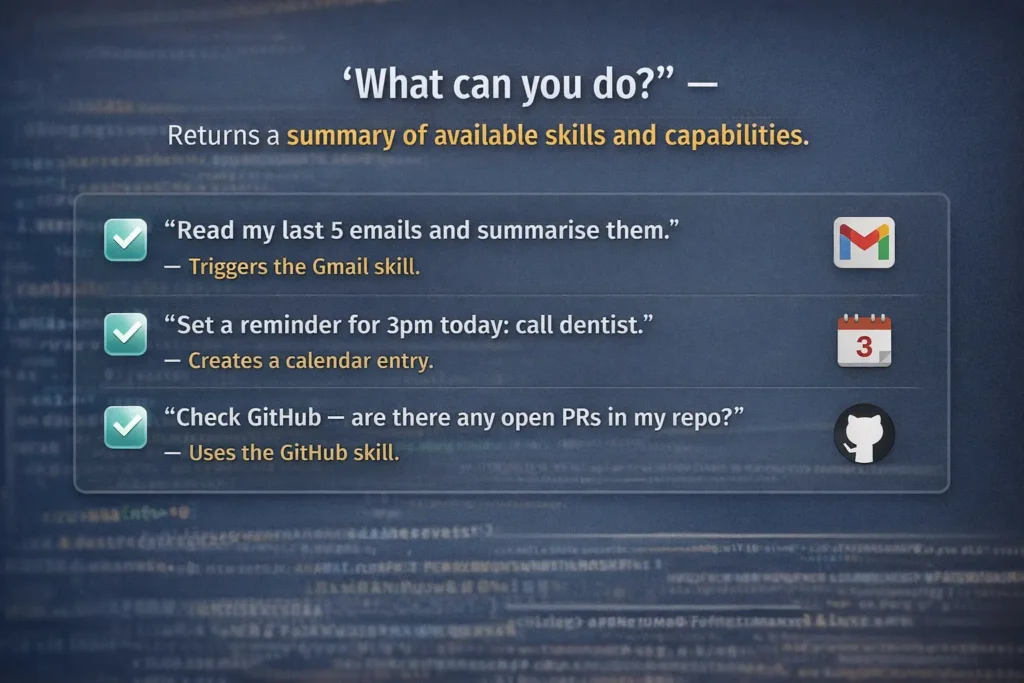
Send a message to OpenClaw through your connected chat app. If it responds, you’re all set. Try: “What can you do?”
Initial Configuration Checklist
- [ ] Node.js v22+ confirmed
- [ ]
openclaw --versionreturns a version number - [ ]
openclaw doctorreturns no critical errors - [ ] API key stored in
~/.openclaw/.env - [ ] At least one messaging channel connected and responding
- [ ] Gateway daemon installed and set to start on boot
[LINK ANCHOR → Article 4: Config, Hosting & Setup Guide] — “For detailed config file options, environment variables, and gateway hardening, see our complete configuration reference →”
How to Start OpenClaw
Start the Gateway
openclaw gateway start
Start as a Background Daemon (Recommended)
openclaw onboard --install-daemon
This registers the Gateway as a system service. On macOS it creates a launchd plist (~/Library/LaunchAgents/ai.openclaw.gateway.plist). On Linux it creates a systemd user service (~/.config/systemd/user/openclaw-gateway.service).
Confirm It Is Running
openclaw status
openclaw health
The status command shows all active services. The health command runs a deeper connectivity check including API key validation and channel status.
Access the Web Dashboard
The Gateway dashboard is available at http://localhost:18789 in your browser once the service is running. Use it to monitor active sessions, review logs, and manage channel connections without the CLI.
How to Use OpenClaw — Core Features Walkthrough
With the Gateway running and a channel connected, you interact with OpenClaw entirely through your messaging app.
Sending Your First Request
Open Telegram, WhatsApp, or whatever channel you configured. Send a plain language message:
Running Your First Autonomous Task
Try a multi-step task to see agentic behaviour:
"Monitor my inbox for any email with the subject 'invoice' and forward it to accounts@mydomain.com"
OpenClaw will: check your email configuration, set up a monitoring rule, confirm the action with you (if consent mode is on), and report back when it executes.
Enabling Consent Mode (Strongly Recommended)
Enable explicit consent mode (exec.ask: "on" in config) to require approval before write or exec commands. This prevents the agent from taking destructive actions without confirmation. It is the single most important configuration choice for new users.
Add to ~/.openclaw/openclaw.json:
{
  "agent": {
    "model": "anthropic/claude-opus-4-6"
  },
  "exec": {
    "ask": "on"
  }
}
How to Restart OpenClaw
After any configuration change, skill installation, or update, restart the Gateway to apply changes.
Graceful Restart (Standard)
openclaw gateway restart
This performs a clean stop and restart of the Gateway process, applies any config migrations, and re-establishes channel connections.
Force Restart (When Gateway Is Unresponsive)
openclaw gateway stop
openclaw gateway start
When to Restart vs. When to Run Doctor
Restart after: config changes, skill installs, API key updates, and version upgrades.
Run openclaw doctor after: installation, updates, or any time behaviour seems unexpected. The doctor command audits your Node.js version, dependencies, config file, security settings, and API connectivity, and reports exactly what is wrong.
openclaw doctor --deep --yes
How to Update OpenClaw to the Latest Version
OpenClaw is pre-1.0 and ships new releases frequently — sometimes multiple times a week. Keeping up matters because updates regularly patch security issues, fix platform-specific bugs, and migrate configuration keys.
Check Your Current Version
openclaw --version
openclaw status --all --deep
To check the latest published version without updating:
npm view openclaw version
Update via the Official Installer (Recommended)
The preferred update path for any non-Docker install is to re-run the official installer script. It detects an existing installation, upgrades in place, and runs openclaw doctor automatically:
curl -fsSL https://openclaw.ai/install.sh | bash -s -- --no-onboard
Update via npm or pnpm
npm i -g openclaw@latest
# or
pnpm add -g openclaw@latest
After the package manager finishes, always run the post-update verification sequence:
openclaw doctor
openclaw gateway restart
openclaw health
Update via CLI Command
openclaw update
This single command handles the full flow: checks your worktree, fetches the latest version, installs dependencies, builds the project, runs openclaw doctor, and restarts the Gateway automatically.
Update Channels
OpenClaw has three channels: stable, beta, and dev. Use stable for production. Use beta or dev to try new features at the cutting edge.
What to Back Up Before Updating
openclaw backup create
This backs up your config, workspace, memory files, and channel tokens. Always run this before major version changes.
Update Docker Installations
docker stop openclaw
docker pull openclaw/openclaw:latest
docker run -d --name openclaw \
  -p 3000:3000 \
  -v ~/.openclaw:/root/.openclaw \
  --env-file ~/.openclaw/.env \
  openclaw/openclaw:latest
How to Uninstall OpenClaw
OpenClaw installs itself as a persistent background service — a LaunchAgent on macOS, a systemd user unit on Linux, a Scheduled Task on Windows. Deleting the binary or running npm uninstall does not stop those services. The service keeps running after reboot. Use the proper uninstall sequence to remove everything cleanly.
Step 1: Run the Official Uninstall Command
If the openclaw command is still available, use the built-in uninstaller:
openclaw uninstall --all --yes
For fully non-interactive removal:
openclaw uninstall --all --yes --non-interactive
This removes the gateway service, state directory, and CLI package in one step, listing exactly what will be removed before doing anything destructive.
Step 2: Remove the Global CLI Package
npm uninstall -g openclaw
# or pnpm: pnpm remove -g openclaw
# or bun: bun remove -g openclaw
Step 3: Delete Residual Data Directories
rm -rf ~/.openclaw
If you installed during the Clawdbot or Moltbot naming phase, also check for and remove legacy directories:
ls -la ~ | grep -E "claw|molt"
rm -rf ~/.clawdbot ~/.moltbot
Step 4: Remove the macOS Daemon (If Applicable)
launchctl bootout gui/$UID/ai.openclaw.gateway
rm -f ~/Library/LaunchAgents/ai.openclaw.gateway.plist
Step 5: Remove the Linux systemd Service (If Applicable)
systemctl --user disable --now openclaw-gateway.service
rm -f ~/.config/systemd/user/openclaw-gateway.service
systemctl --user daemon-reload
Step 6: Revoke OAuth Tokens
Running npm uninstall removes the software but does not revoke API access tokens granted to OpenClaw by services like Google, Slack, and Discord. After uninstalling, manually revoke access from each service’s security settings page. OAuth tokens live on the provider’s servers, not your computer.
Verify Clean Removal
which openclaw        # Should return "command not found"
openclaw --version    # Should fail
lsof -i :18789        # Should return nothing
Troubleshooting Common Installation Issues
“Port Already in Use” / RPC Probe Failed
Port 18789 is blocked. Find the conflicting process:
sudo lsof -i :18789
Kill the conflicting process by its PID, then restart:
kill -9 <PID>
openclaw gateway restart
EACCES / Permission Denied Errors
This is the most common issue on macOS, caused by npm global directory permissions not being configured correctly.
mkdir ~/.npm-global
npm config set prefix '~/.npm-global'
echo 'export PATH=~/.npm-global/bin:$PATH' >> ~/.bashrc
source ~/.bashrc
npm install -g openclaw@latest
Alternatively, switch to nvm, which handles permissions automatically.
“Gateway Not Responding” / “0 Tokens Used”
The daemon stopped or API authentication failed. Run openclaw gateway restart and verify your API keys.
openclaw gateway restart
openclaw doctor
Check that your API key is correctly set in ~/.openclaw/.env:
ANTHROPIC_API_KEY=sk-ant-your-key-here
“Access Not Configured” Error
Your user ID is not allowlisted. Run the pairing approve command with the code from your messaging bot.
openclaw devices approve <pairing-code>
Config File Not Found
The default config location is ~/.openclaw/openclaw.json. If you moved it, set the environment variable:
export OPENCLAW_CONFIG_PATH=/your/custom/path/openclaw.json
Docker EACCES Errors
The Node user (UID 1000) lacks permission to mounted volumes. Fix with:
chown -R 1000:1000 ~/.openclaw ~/openclaw/workspace
Frequently Asked Questions
How do I know OpenClaw installed correctly?
Run openclaw doctor. A clean install returns no critical errors. Then send a test message through your connected chat app and confirm the agent responds. If both checks pass, your installation is working.
How do I update OpenClaw without losing my config?
Run openclaw backup create before any update. The update process — whether via openclaw update, the installer script, or npm — does not modify your ~/.openclaw/openclaw.json or .env files. Config migrations are handled automatically by openclaw doctor, which runs as part of every update.
How do I restart OpenClaw after a system reboot?
If you installed the daemon with --install-daemon during onboarding, OpenClaw starts automatically on reboot. Verify this is configured with:openclaw status
If it is not set to auto-start, run openclaw onboard --install-daemon once to register the service.
How long does OpenClaw installation take?
On a stable internet connection, the npm install completes in 2–5 minutes. The onboarding wizard takes 5–10 minutes depending on how many channels you configure. Total time from zero to a responding agent: 15–20 minutes.
Conclusion
OpenClaw installation is not complicated — but it is specific. Node.js 22+ is non-negotiable. The daemon installation is non-optional if you want an always-on agent. Consent mode should be enabled from day one. And the openclaw doctor command is your best friend: run it after installation, after every update, and whenever behaviour seems off.
Follow the steps in this guide and you will have a stable, secure, running OpenClaw instance by the end of the afternoon. The effort is front-loaded — once the Gateway is running and the channels are connected, everything else is a matter of building skills and automating the workflows that matter to you.
Now that OpenClaw is installed and running, explore everything it can do and start building your first automation workflows → [What Is OpenClaw AI? Everything You Need to Know]
Source:
- Official GitHub Repository: https://github.com/openclaw/openclaw
- Official Documentation — Getting Started: https://docs.openclaw.ai/getting-started
- Official Documentation — Node.js Requirements: https://docs.openclaw.ai/install/node
- Official Documentation — Uninstall: https://docs.openclaw.ai/install/uninstall
- npm Package Page: https://www.npmjs.com/package/openclaw
- OpenClaw CLI Cheatsheet (Community): https://openclawcheatsheet.com
- Windows Terminal Download: https://aka.ms/terminal
- nvm (Node Version Manager): https://github.com/nvm-sh/nvm
- PromptLayer Installation Guide: https://blog.promptlayer.com/how-to-install-openclaw-step-by-step-guide-formerly-clawdbot-moltbot/
- allthings.how Update Guide: https://allthings.how/how-to-update-openclaw-every-install-method-covered/
- digital-loop.com Uninstall Guide: https://digital-loop.com/en/blog/how-to-uninstall-clawbot-openclaw